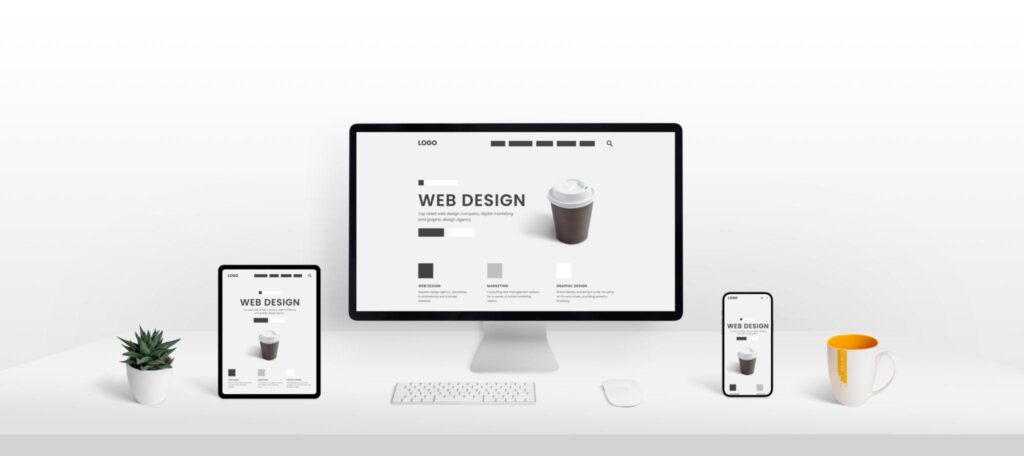
If you want to build a professional website without writing code, Elementor is one of the most powerful tools available. It is a drag-and-drop page builder for WordPress that allows you to design pages visually in real time.
Why Elementor is popular:
No coding required
Real-time visual editing
Large collection of pre-built templates
Fully responsive design support
How Elementor Works
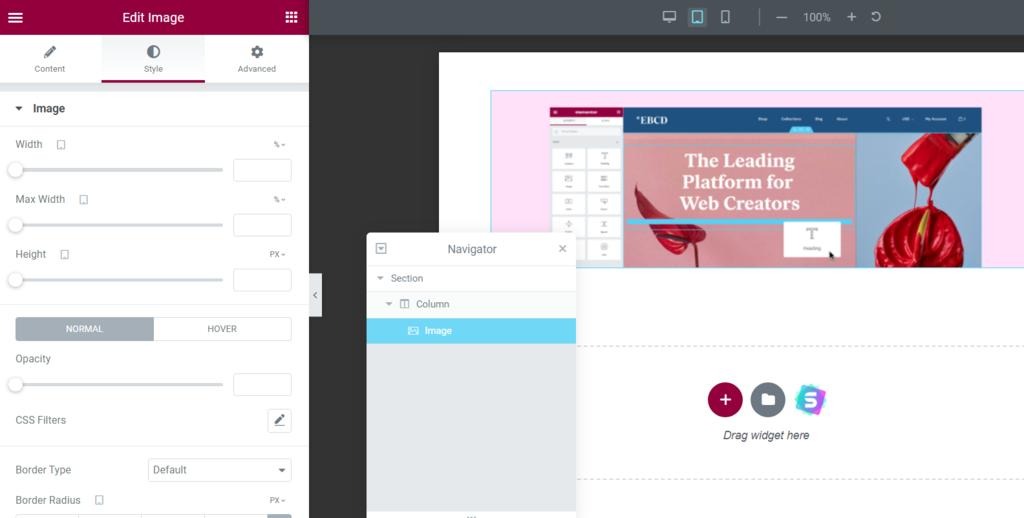
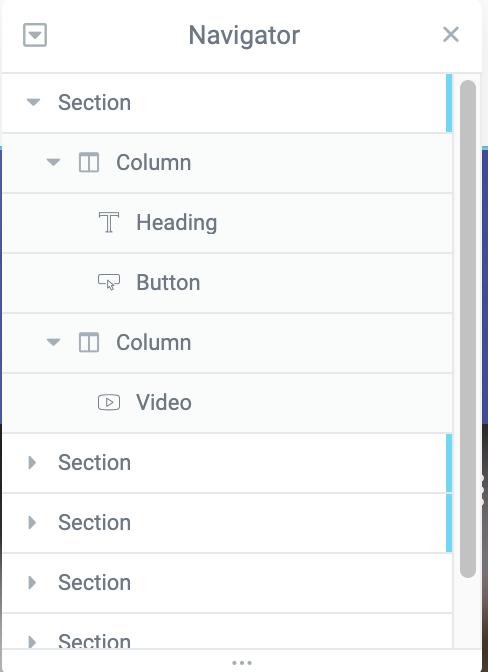
Elementor is built on three core structural elements:
Sections – The main rows of your layout
Columns – Divide sections into vertical areas
Widgets – Content elements such as text, images, buttons
In simple terms: Section → Column → Widget
How to Install Elementor
Step-by-step process:
Go to your WordPress Dashboard
Navigate to Plugins → Add New
Search for “Elementor”
Click Install and then Activate
The free version provides all essential features for beginners, while the Pro version unlocks advanced design and marketing tools.
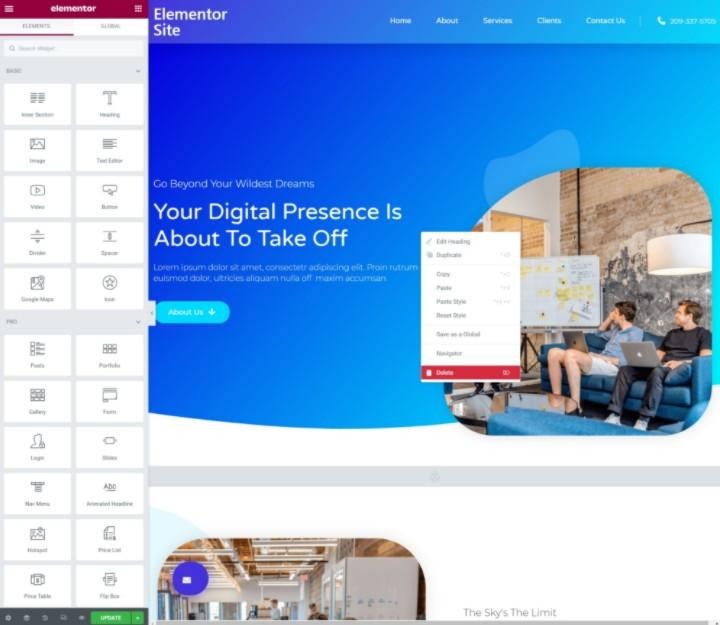
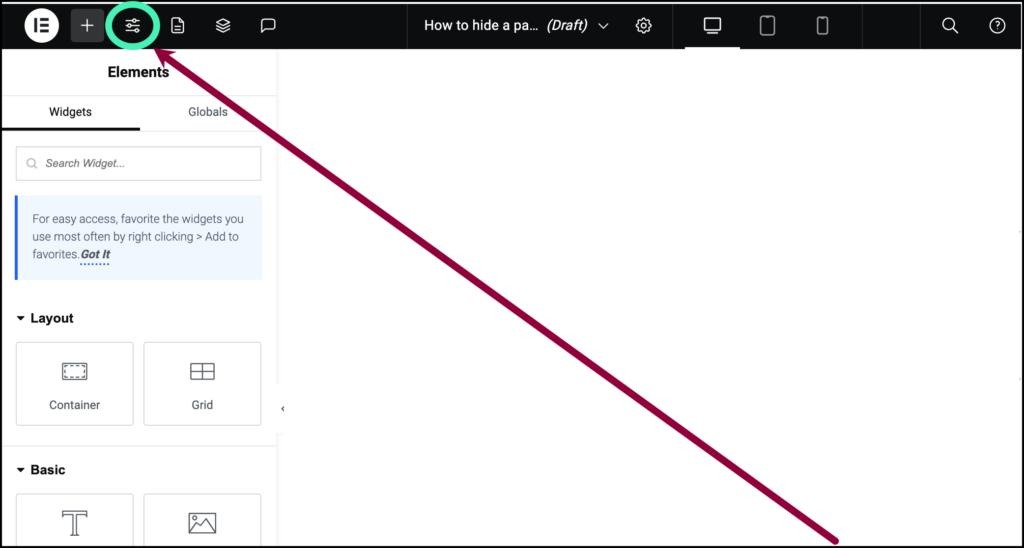
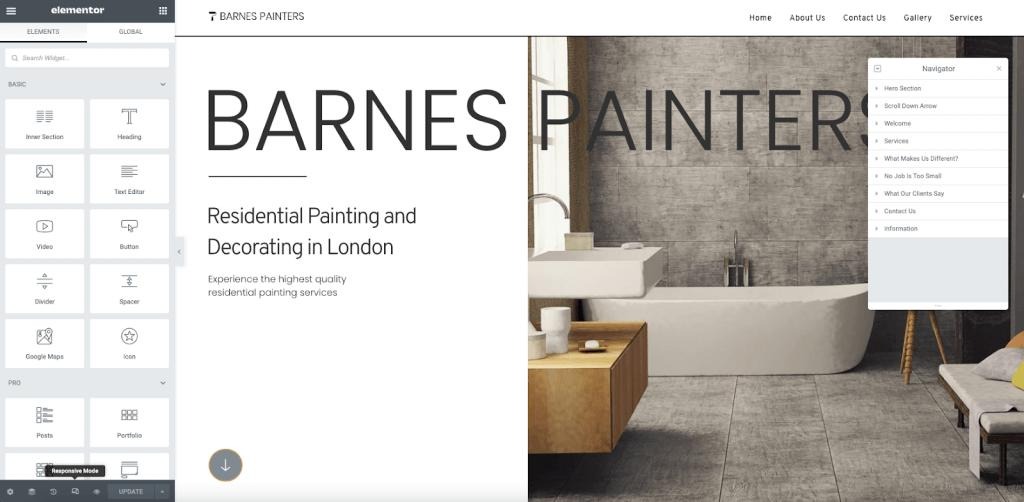
Understanding the Elementor Interface
When you open Elementor, you will see:
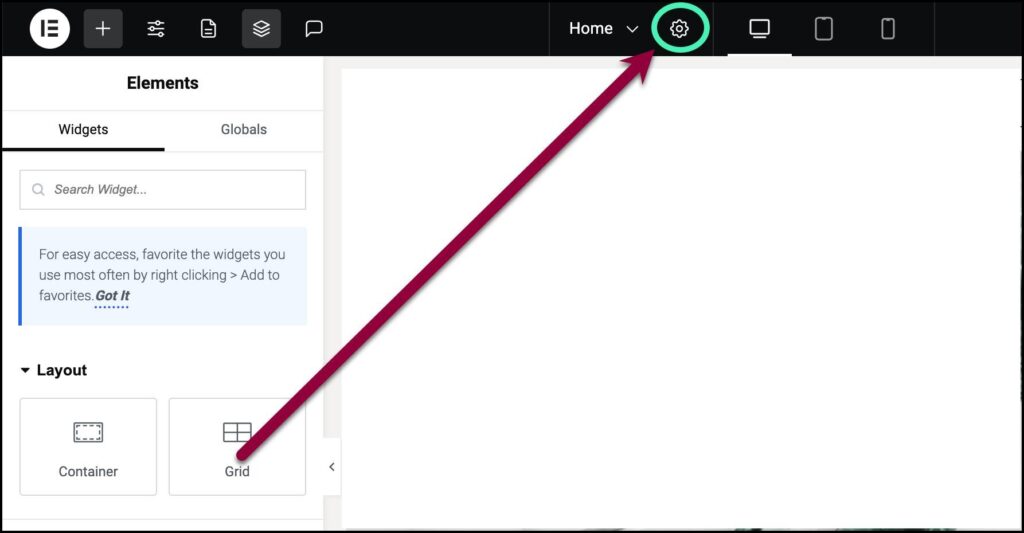
Left Panel (Widgets Panel): Drag elements from here
Right Panel (Canvas): Live preview of your design
Bottom Panel: Settings, responsive mode, preview, and publish options
Important Widgets for Beginners
Elementor includes many widgets, but these are the most important to start with:
Heading
Text Editor
Image
Button
Spacer
Divider
Icon
With these widgets, you can create most basic website layouts.
How to Create Your First Page
Step 1: Create a New Page
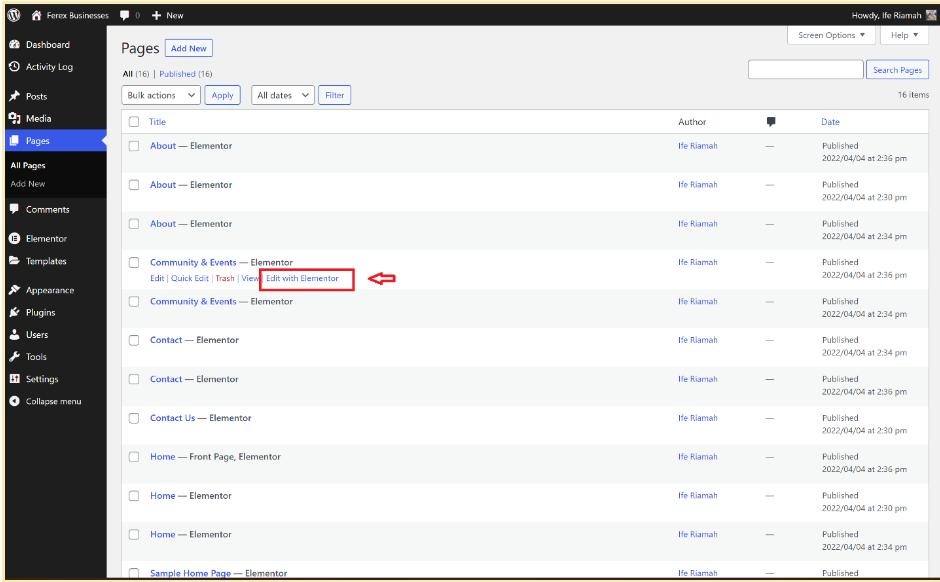
Go to WordPress Dashboard → Pages → Add New
Click “Edit with Elementor”
Step 2: Set Up Layout
Click the “+” icon
Choose a column structure
Step 3: Add Widgets
Drag a Heading widget
Add text content
Insert an image
Add a button
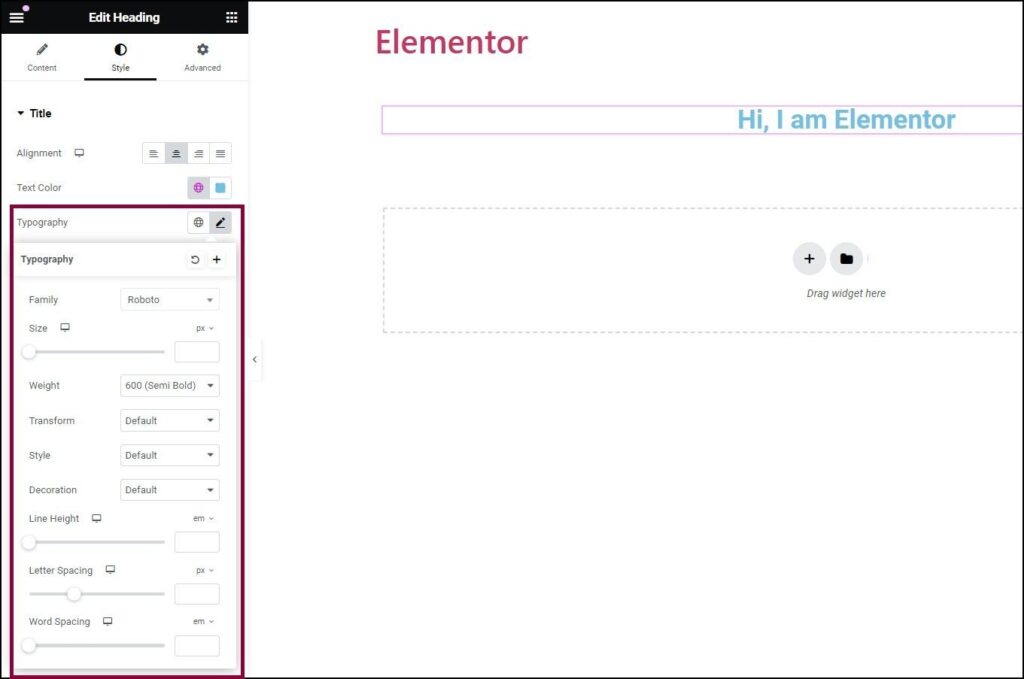
Step 4: Style Your Design
Adjust colors and typography
Modify spacing and alignment
Step 5: Publish
Click the “Publish” button
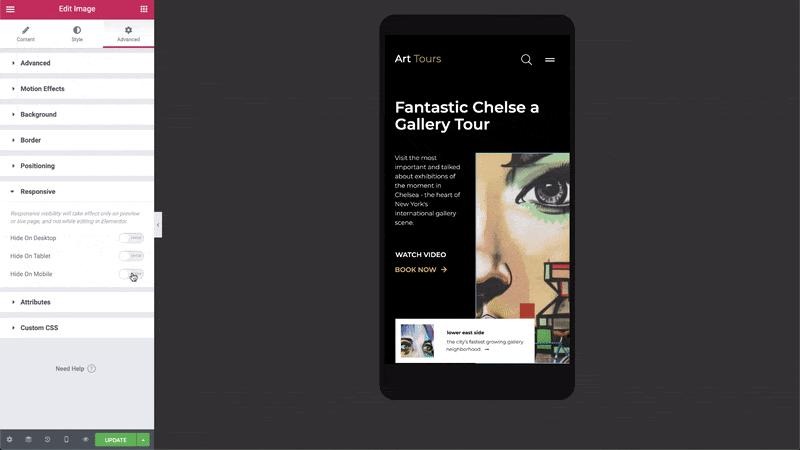
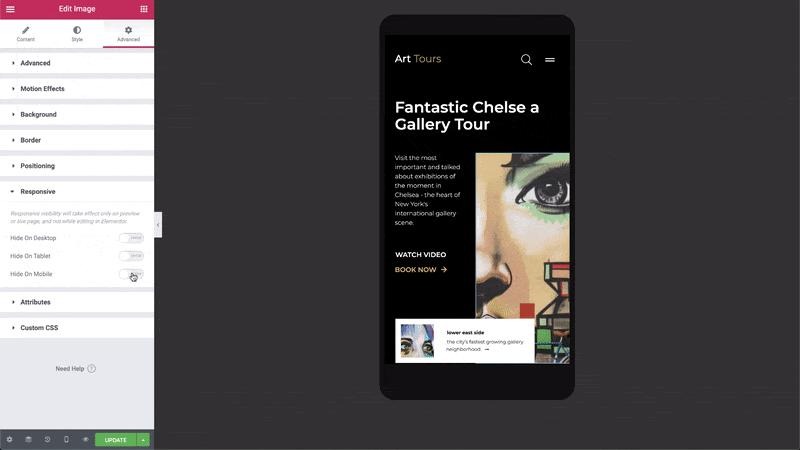
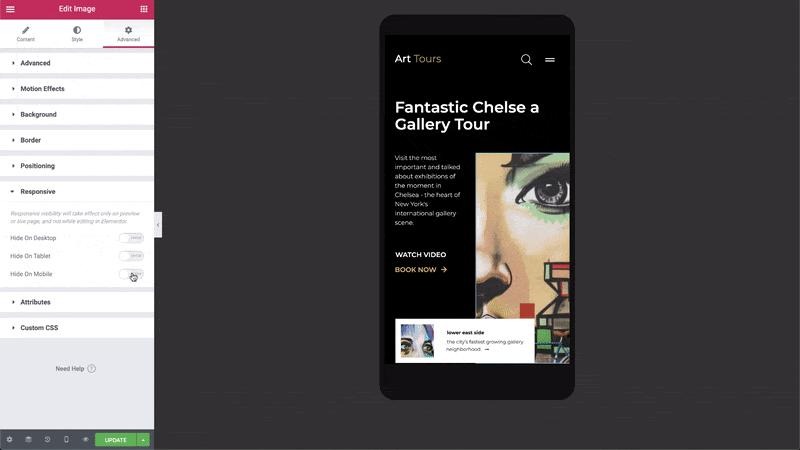
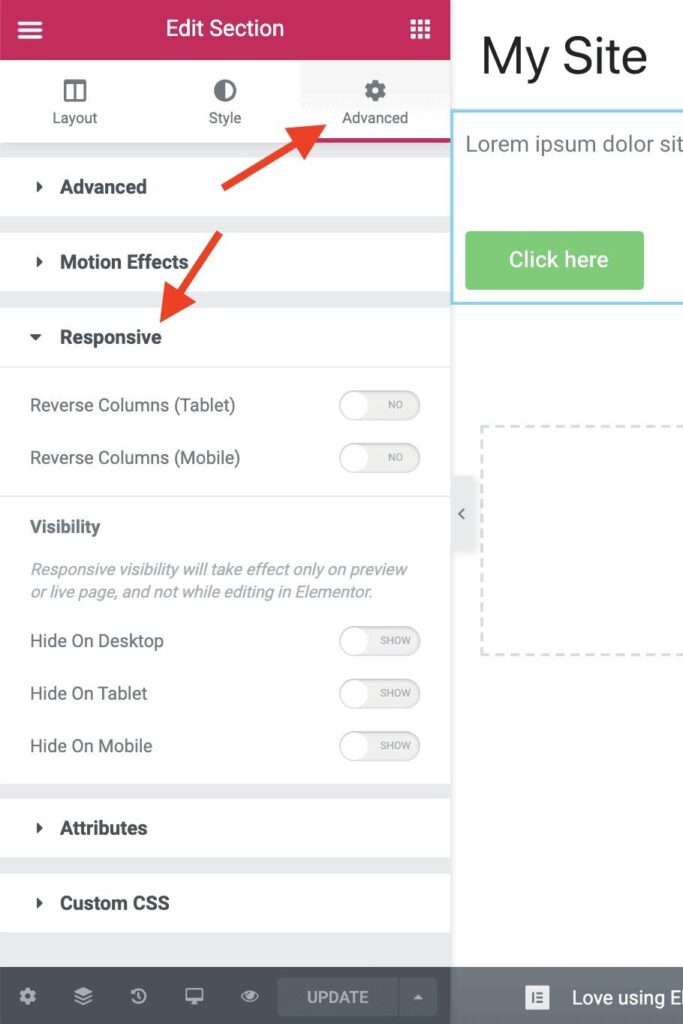
Responsive Design (Mobile Optimization)
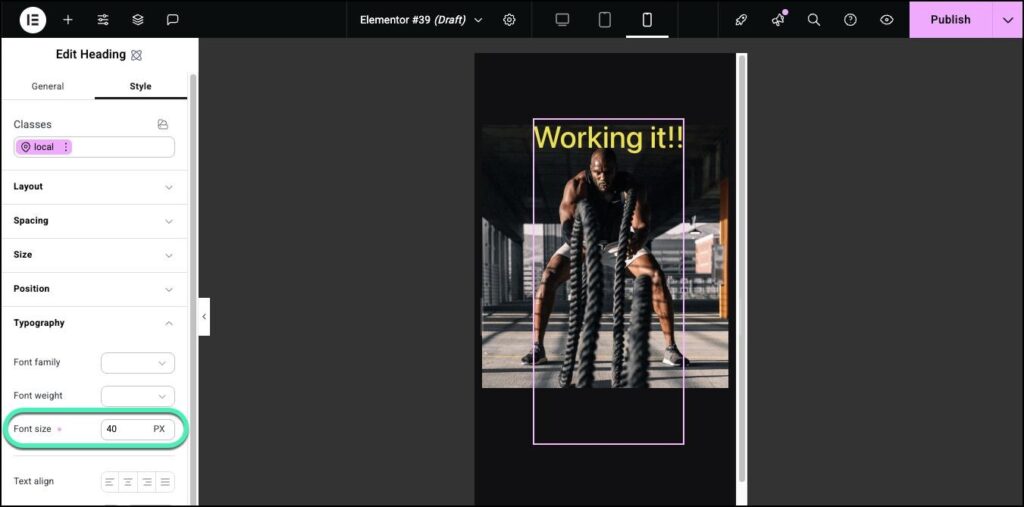
Elementor allows you to optimize your design for different devices:
Click the responsive mode icon
Switch between desktop, tablet, and mobile views
Adjust font sizes, spacing, and layout accordingly
Mobile optimization is critical since a large portion of users access websites via smartphones.
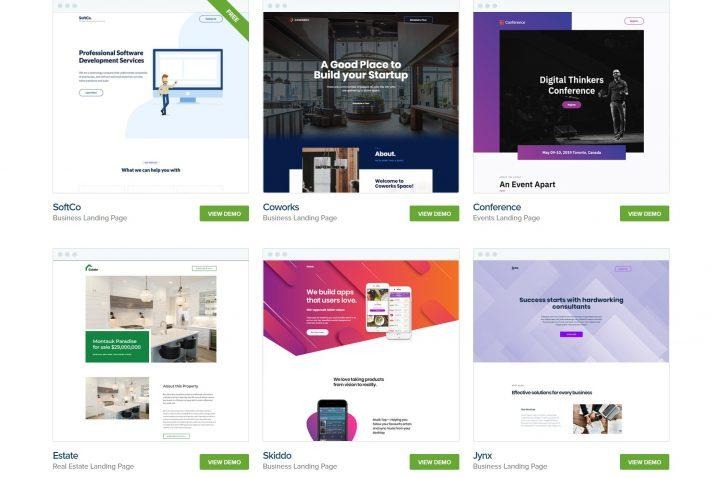
Using Elementor Templates
Elementor provides a library of ready-made templates, including:
Landing pages
About pages
Contact pages
Portfolio layouts
These templates help you build professional designs quickly and efficiently.
Elementor Free vs Pro
Feature
Free
Pro
Basic Widgets
Yes
Yes
Advanced Widgets
No
Yes
Theme Builder
No
Yes
Popup Builder
No
Yes
WooCommerce Support
No
Yes
For beginners, the free version is sufficient to get started.
Best Practices for Beginners
Avoid using too many widgets on a single page to maintain performance
Optimize images before uploading
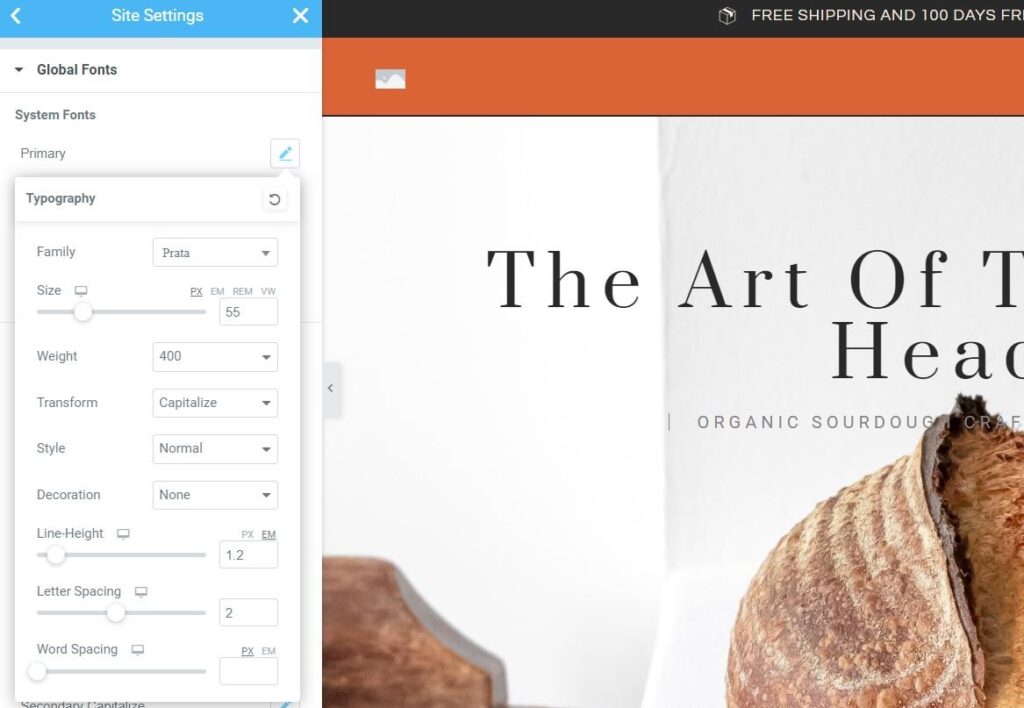
Use global fonts and colors for consistency
Always test your design on mobile devices
What You Can Build with Elementor
Business websites
Portfolio websites
Blogs
Landing pages
E-commerce stores
Conclusion
Elementor is a powerful tool that enables you to create modern websites without coding. Beginners can start with the free version and gradually explore advanced features as they gain experience. Consistent practice is the key to mastering Elementor.